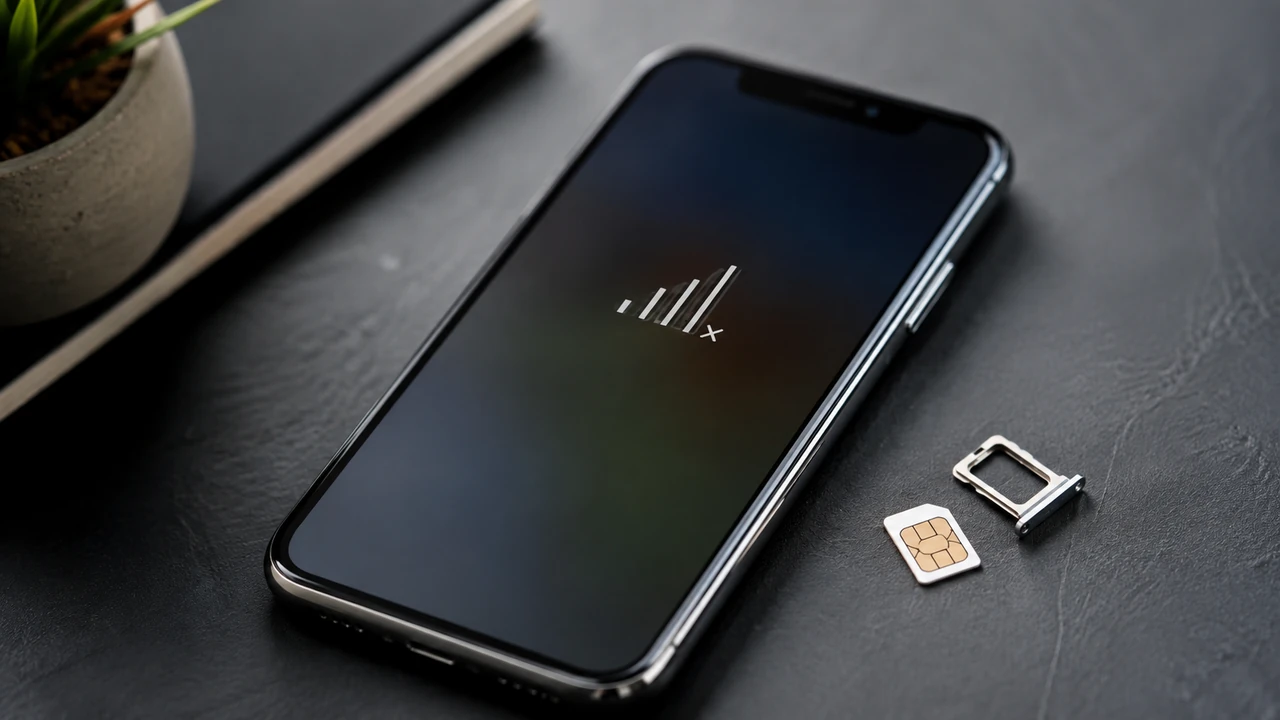
When an iPhone recognizes a physical SIM or eSIM but still shows “No Service,” the phone has not successfully connected to a cellular network. Start with a simple network reconnect, then check the cellular line, carrier settings, account status and SIM before using network reset as a later troubleshooting step.
Use this order: Airplane Mode for at least 15 seconds → restart → verify the cellular line → update carrier settings → update iOS → reseat/test the SIM → check with your carrier → reset network settings. This separates a temporary connection problem from a SIM, account, configuration or hardware issue.
1. A detected SIM does not mean the iPhone is connected to the network
If your SIM or eSIM appears under Cellular settings, the iPhone can see the line information. “No Service,” however, means it is not connected to a cellular network. That distinction matters because a missing SIM and a failed network registration need different troubleshooting paths.
If you see “No SIM” or “Invalid SIM” instead, focus on SIM activation, carrier lock, the SIM tray or eSIM provisioning. If the line is visible but there are no bars, continue with the steps below.
Do not start with a factory reset. First eliminate network reconnection, line settings and carrier-side causes that can be checked without deleting data.
2. Reconnect with Airplane Mode, then restart
Apple’s current No Service guidance says to turn on Airplane Mode for at least 15 seconds, then turn it off. This forces a fresh attempt to connect to the cellular network without erasing settings.
- Open Settings and turn on Airplane Mode.
- Wait at least 15 seconds.
- Turn Airplane Mode off and allow time for signal to return.
- If nothing changes, restart the iPhone.
Also test in another location. A basement, elevator or weak-coverage area can produce the same symptom as a device problem.
3. Make sure the correct cellular line is turned on
Dual SIM and eSIM users should open Settings > Cellular and check the affected line. A stored line can exist on the phone while being switched off.
If the issue happens only while traveling, review roaming settings and confirm that your carrier has enabled the appropriate roaming service. Roaming is not a universal fix for No Service, because the underlying problem may be network registration or account provisioning.
Check each line separately on Dual SIM devices, especially after changing carriers, adding an eSIM or transferring service from another phone.
4. Check for carrier settings and iOS updates
Carrier settings updates can improve cellular connectivity and add support for carrier features. Connect to Wi‑Fi, then go to Settings > General > About. If an update is available, follow the prompt.
A new SIM or eSIM may require settings for the new carrier. After that, check Settings > General > Software Update and install an available iOS update when appropriate.
See Apple’s carrier settings update instructions
5. Reseat a physical SIM and use a cross-test if possible
For a physical SIM, remove and reinstall it carefully, checking for visible damage and making sure the tray closes fully. A tray from another phone model may not fit correctly.
If the problem continues, testing a different known-working SIM can help isolate the cause. If only the original SIM fails, the SIM or line is more suspect; if multiple working SIMs fail in the same iPhone, device settings or hardware become more plausible.
Review Apple’s SIM troubleshooting steps
6. Ask the carrier to check the account and network
A SIM can be detected while the line is inactive, blocked, affected by a local outage or not properly provisioned. Your carrier has access to account and network information that the iPhone itself cannot verify.
Tell support that the SIM is visible under Cellular but the phone remains on No Service. Ask them to verify line activation, local outages, account blocks and device/IMEI provisioning.
Some countries or regions require IMEI registration for phones originally purchased elsewhere. If that applies where you are using the iPhone, confirm the requirement with the local carrier.
7. Reset network settings only after the simpler checks
If the carrier confirms the account and network are fine, you can try Settings > General > Transfer or Reset iPhone > Reset > Reset Network Settings. This is different from erasing the iPhone.
The reset removes saved network configuration, including Wi‑Fi networks and passwords and related cellular, VPN and APN settings. Have important credentials available before proceeding, and check with an administrator first on managed work or school devices.
Read Apple’s iPhone reset-settings guide
8. Consider service if every network-side check passes
If your carrier confirms there is no account or network issue, multiple known-good SIMs show the same symptom, and software/network-setting checks have not helped, hardware diagnosis becomes reasonable.
That is especially true if No Service began after a drop or liquid exposure or persists in multiple locations. On supported iPhone models with iOS 18 or later, Apple also points users to the latest Apple Support app for additional diagnostics.
Open Apple’s official No Service troubleshooting page
Troubleshooting Order at a Glance
When an iPhone recognizes a physical SIM or eSIM but still shows “No Service,” the phone has not successfully connected to a cellular network.
| Order | Check | What it tells you |
|---|---|---|
| 1 | Airplane Mode and restart | Rules out a temporary registration failure |
| 2 | Cellular line | Confirms the intended line is enabled |
| 3 | Carrier settings and iOS | Applies current network/software configuration |
| 4 | Reseat or cross-test SIM | Separates SIM and device causes |
| 5 | Carrier check | Finds account, outage or provisioning issues |
| 6 | Reset network settings | Clears stored network configuration |
| 7 | Service diagnosis | Checks possible hardware failure |
Quick Checklist
If your iPhone detects the SIM but shows No Service, troubleshoot from least disruptive to most disruptive.
- ✓ Airplane Mode was on for at least 15 seconds
- ✓ The iPhone was restarted and tested in another location
- ✓ The affected line is enabled under Settings > Cellular
- ✓ Carrier settings were checked under Settings > General > About
- ✓ Available iOS updates were checked
- ✓ A physical SIM was reseated or cross-tested when possible
- ✓ The carrier verified activation, outages and account blocks
- ✓ Wi‑Fi credentials were saved before considering a network reset
Keep Reset Network Settings near the end of the process. It cannot fix a carrier outage or an account block, and it removes saved network configuration.
Do not confuse Reset Network Settings with Erase All Content and Settings. Also avoid deleting an eSIM casually; restoring cellular service may require carrier activation again.
Final Summary
If your iPhone detects the SIM but shows No Service, troubleshoot from least disruptive to most disruptive. Reconnect first, verify the line and updates, test the SIM and carrier account, then use network reset or hardware service only when the earlier checks do not explain the problem.
Frequently Asked Questions
Why does my iPhone say No Service even though it detects the SIM?
Reading SIM information and registering on a cellular network are separate steps. No Service can result from coverage, line activation, carrier settings, the SIM, network configuration or hardware.
How long should I leave Airplane Mode on?
Apple’s current No Service support guidance says to leave Airplane Mode on for at least 15 seconds before turning it off. Then give the iPhone time to reconnect to the cellular network.
Will Reset Network Settings delete my photos?
No. Reset Network Settings is not a factory erase and does not delete your photos or apps. It can remove saved Wi‑Fi networks and passwords and reset cellular, VPN and APN-related settings.
Will replacing the SIM always fix No Service?
No. A replacement can help if the original SIM is faulty, but it will not fix a carrier outage, account restriction or iPhone hardware problem. A cross-test with a known-working SIM is more informative than replacing parts blindly.
When should I contact Apple for service?
Consider service after your carrier confirms the account and network are fine, the problem occurs with another working SIM, and software and network-setting checks have failed. A problem that started after a drop or liquid exposure also makes hardware diagnosis more relevant.