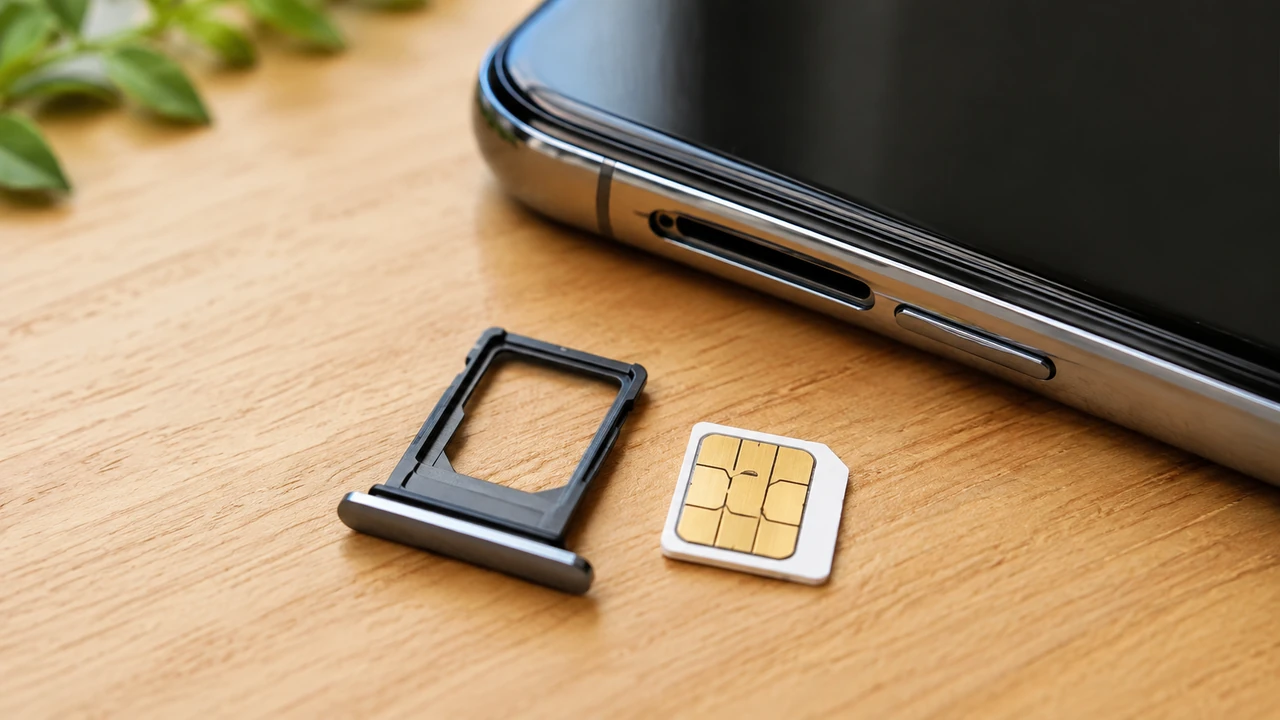
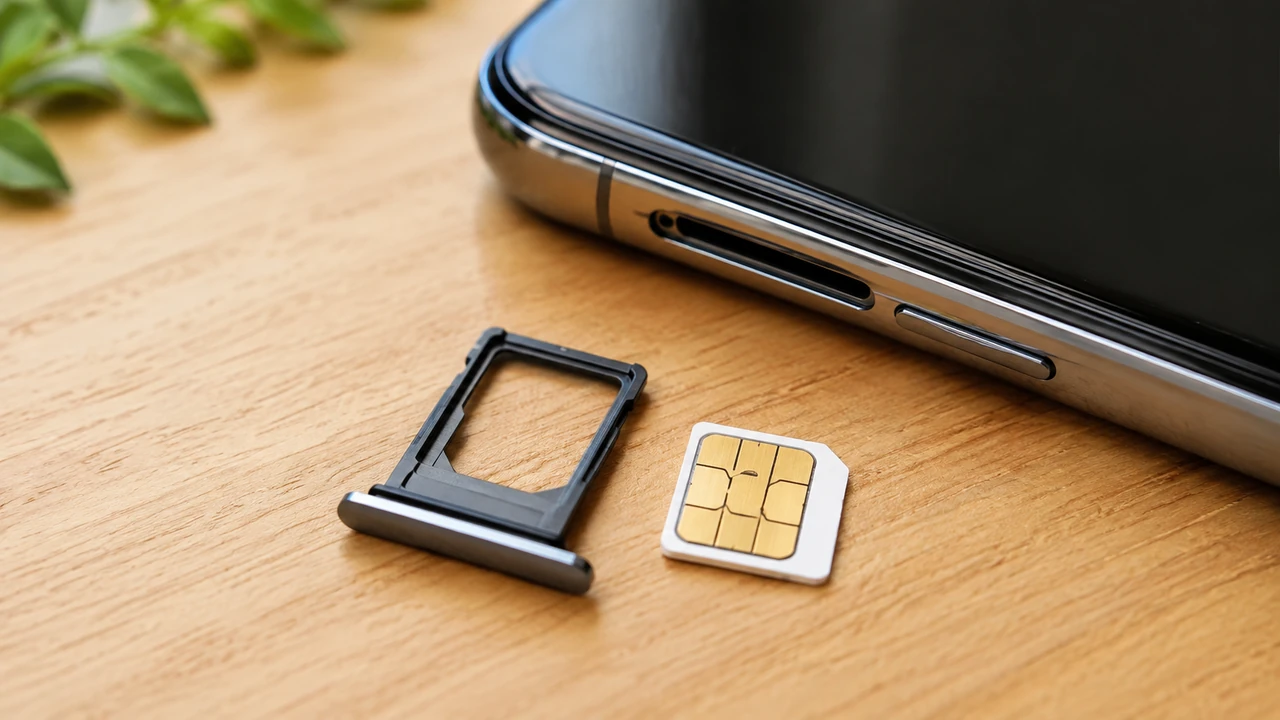
If a new phone does not detect your SIM, first power it off and reseat the card so it matches the tray and lies completely flat. Then restart the phone and confirm whether the exact model supports a physical SIM or requires eSIM.
Align the SIM by its clipped corner, seat it flat, close the tray completely, and restart. If the phone still cannot detect the card, check SIM condition, device compatibility, eSIM requirements, carrier lock, and activation.
1. Start with the physical SIM before changing network settings
If a brand-new phone shows “No SIM,” “SIM not detected,” or a similar message, avoid jumping straight to a network reset. The fastest path is usually physical seating → restart → compatibility and carrier checks. Apple and Samsung both include restarting and reseating the SIM among their primary troubleshooting steps.
- Power the phone off completely.
- Remove the tray and confirm the SIM lies flat inside it.
- Match the cut corner of the SIM to the tray shape.
- Push the tray in fully without forcing it.
- Turn the phone on and check whether the SIM appears in cellular settings.
A phone that cannot detect a SIM at all is different from a phone that detects the line but shows “No Service.” Start with the card and tray for the first case; expand to activation, carrier settings, and network availability for the second.
2. Use the tray shape—not a memorized contact direction—to orient the SIM
A nano-SIM has a clipped corner that is designed to match the tray. The most reliable approach is to align that corner with the tray, then make sure the card sits fully inside the recess without rocking or lifting.
Samsung notes that the gold contacts face upward on many Galaxy models, but tray designs can differ. Use the official Samsung SIM troubleshooting guide and your model manual. For iPhone, Apple’s SIM tray guide by model helps you identify the tray location and whether the model uses eSIM instead.
Three checks before sliding the tray back in
- The clipped corner matches the tray notch.
- The SIM is flush with the tray and does not wobble.
- You are using the tray that belongs to this exact phone model.
Do not force a tray that feels stuck or misaligned. A tilted SIM can damage the card, tray, or internal contacts.
3. Power off before reseating, then perform a normal restart
For physical SIM troubleshooting, turn the phone fully off before removing the tray. After reseating the card, start the phone normally and check the status bar and cellular settings. If the SIM is still not detected, perform one normal restart before moving on.
Apple’s No SIM troubleshooting page includes restarting the iPhone, checking carrier settings, and reseating the physical SIM. Samsung also recommends restarting and inspecting the SIM for damage or contamination.
After the restart, verify these signals
- The line appears under cellular or SIM settings.
- A mobile network indicator appears when Wi-Fi is off.
- Calls or texts can be attempted.
- The message says “No SIM,” “Invalid SIM,” or “No Service”—the exact wording matters.
Take a screenshot of the exact error before contacting support. It helps the carrier or manufacturer separate card-detection problems from network-registration problems.
4. Confirm whether the new model uses a physical SIM, eSIM, or both
A new phone may not use the same SIM setup as your old one. Some models are eSIM-only, while others support a physical nano-SIM plus eSIM. Even when a tray is present, an older SIM can sometimes be incompatible with newer hardware.
Apple says iPhone models without a physical tray use eSIM, and its SIM tray support page identifies model differences. Google’s Pixel SIM and eSIM setup guide also notes that some older SIM cards are not supported on Pixel 8 and later devices.
Check these before blaming the tray
- The exact model supports a physical nano-SIM.
- The phone is not locked to a different carrier.
- The SIM is not visibly scratched, corroded, or warped.
- If using eSIM, the carrier profile has actually been downloaded and enabled.
A missing SIM tray does not automatically mean a manufacturing defect. The phone may have been designed for eSIM-only service in that market.
5. Let the on-screen message determine your next step
Not every mobile-network failure is a SIM-detection failure. Use the exact message on the phone to decide what to test next.
| Message | Most likely area to check first | Next action |
|---|---|---|
| No SIM / SIM not detected | Card seating, tray, physical damage | Power off → reseat → restart |
| SIM detected but No Service | Carrier activation, settings, network | Toggle Airplane Mode, restart, contact carrier |
| Invalid / Unsupported SIM | Carrier lock or SIM compatibility | Check lock status and replacement-SIM requirements |
| eSIM line missing | Profile not installed or disabled | Connect to Wi-Fi, open eSIM settings, contact carrier |
If an iPhone repeatedly shows an invalid or missing SIM alert, follow Apple’s official checklist: active plan, carrier lock, restart, carrier-settings update, and SIM reseating.
If the same SIM works in another compatible phone, the new phone or its provisioning becomes more suspect. If the SIM fails in multiple phones, the SIM itself deserves closer attention.
6. A five-minute SIM detection checklist
Use this sequence before erasing settings or performing a factory reset. Check the result after each step so you know which action changed the behavior.
- Turn the phone completely off.
- Remove the tray and inspect the SIM for dirt, bending, or damage.
- Wipe the card and tray gently with a clean, dry cloth.
- Align the clipped corner and seat the SIM flat.
- Insert the tray fully and power the phone on.
- Check cellular settings, then restart once if necessary.
- Cross-test with another known-good SIM or another compatible phone.
- Confirm carrier activation, device lock status, and SIM compatibility.
Cross-testing is especially valuable because it separates a card problem from a phone problem. If two known-good SIMs both fail in the new device, the tray, reader, provisioning, or device compatibility deserves more attention.
Do not make a factory reset your first response. Physical seating, compatibility, cross-testing, and carrier verification are lower-risk and more informative first steps.
7. When to contact the carrier or phone manufacturer
If the SIM still is not recognized, contact support with a short diagnostic summary: phone model, exact error message, whether the SIM works in another phone, whether another SIM works in the new phone, and what happened after a restart.
- Carrier: verify the line and SIM are activated.
- Carrier: confirm the SIM generation/type is supported by the new phone.
- Manufacturer: check whether the tray or SIM reader needs inspection.
- eSIM: confirm the profile was issued, downloaded, and enabled.
An imported phone may also involve carrier locks or market-specific compatibility. A damaged or very old SIM, meanwhile, can make a replacement card the simplest fix.
Work in this order: seat the SIM correctly → restart → confirm physical SIM/eSIM support → cross-test the card and phone → involve the carrier or manufacturer. Do not force the tray or reset the entire phone before these simpler checks.
8. Frequently Asked Questions
Should the gold contacts on a SIM card always face up?
No. SIM tray designs vary by phone, so match the SIM’s cut corner to the tray first and make sure the card sits flat. Samsung says the gold contacts face up on many Galaxy models, but the model-specific guide should take priority.
How many times should I restart a new phone if it does not detect the SIM?
Start with one normal restart after reseating the SIM. Some carriers may instruct customers to restart more than once during activation, so follow your carrier’s official activation procedure if the first restart does not work.
Should I power off the phone before removing or reinserting the SIM?
Yes, powering the phone off first is the safer troubleshooting approach. It also makes it easier to inspect the tray, card alignment, and physical damage before starting the device again.
What if my new phone has no physical SIM tray?
The model may be eSIM-only. Check the exact model specifications and your carrier’s eSIM support, then complete the eSIM activation rather than trying to locate a physical tray that is not present.
Why does my old SIM work in another phone but not in my new phone?
The new phone may have different SIM compatibility, carrier-lock, provisioning, or hardware requirements. Some newer phones may not support older SIM cards, so confirm the model requirements and ask your carrier whether a replacement SIM or account update is needed.